

WordPress ai assistant plugin installation with IntelliAgent AI enables site owners to deploy a private AI knowledge base that powers accurate automated sales and support responses drawn exclusively from existing WordPress and WooCommerce content. This direct approach ensures the plugin delivers reliable answers while performing real actions such as product recommendations and order tracking without requiring custom development. The process follows a clear sequence that any administrator can complete in minutes while maintaining full compliance with WordPress coding standards.
Table of Contents
- WordPress AI Assistant Plugin Overview
- Prerequisites for IntelliAgent AI Installation
- Dashboard Installation Process
- License Activation Steps
- Knowledge Base Training and Sync
- WooCommerce Integration Configuration
- Troubleshooting Common Installation Issues
- Security Best Practices During Installation
- Performance Optimization After Setup
- Post-Installation Maintenance and Updates
- Frequently Asked Questions
WordPress AI Assistant Plugin Overview
IntelliAgent AI functions as a complete WordPress AI assistant plugin that scans existing pages, posts, and product data to build a secure private knowledge base. The plugin then uses this knowledge base to deliver accurate answers while executing real WooCommerce actions such as product recommendations and order tracking. In modern SEO practice, this architecture supports both user engagement and conversion goals by grounding every response in the site’s own content. WordPress ai assistant plugin installation creates a self-contained system where site content flows through sanitization functions and capability checks before being indexed for chat interactions.
The data flow begins with content scanning of published WordPress entities, proceeds through WP-Cron scheduled background jobs, and results in a private knowledge base that powers both text responses and direct WooCommerce operations. Experienced developers often note that this separation between the public site and the private knowledge base prevents data leakage while enabling 40+ language support through multilingual model routing. A key strategy to consider during wordpress ai assistant plugin installation is mapping each stage of the process to ensure the REST API endpoints remain protected and responses stay contextually accurate.
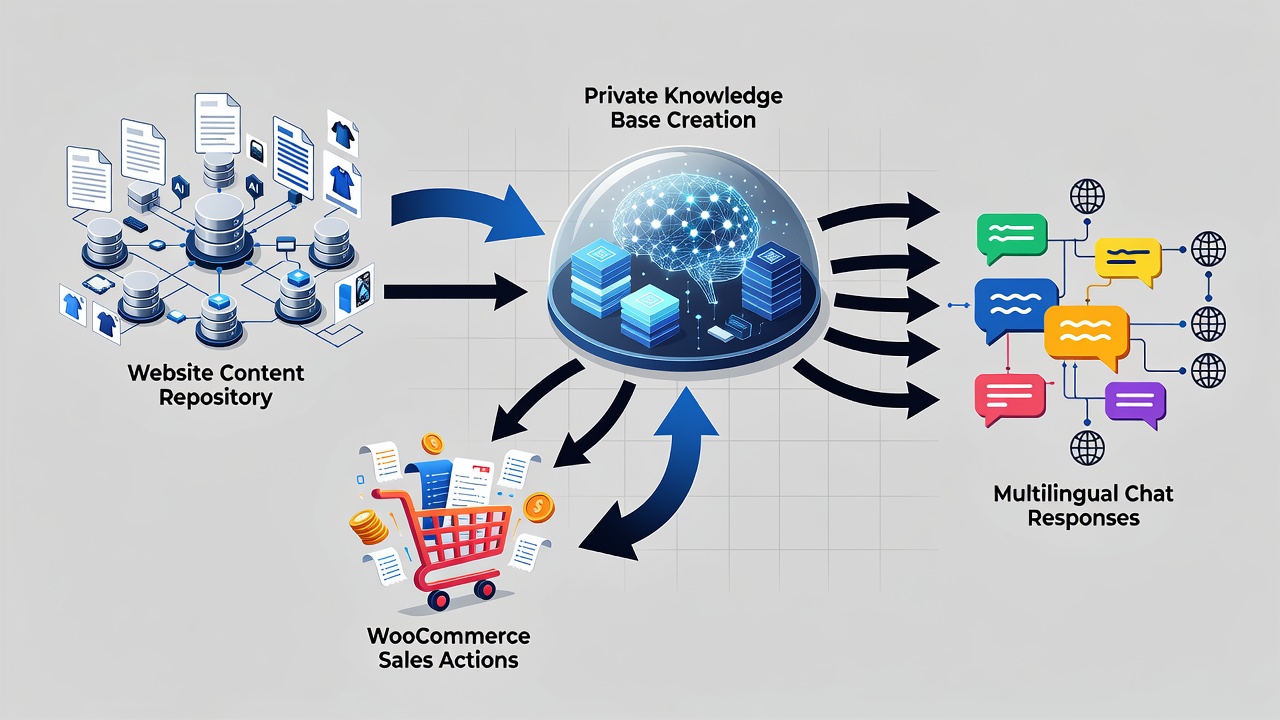
Following WordPress plugin development guidelines ensures compatibility with core hooks and REST API endpoints throughout the entire lifecycle. The plugin indexes all published pages, posts, and WooCommerce products using secure AJAX calls that respect user capabilities. This results in faster support resolution times and automated FAQ management that reflects actual visitor intent across global audiences.
Prerequisites for IntelliAgent AI Installation
Before beginning wordpress ai assistant plugin installation, confirm your site meets these baseline requirements. A current WordPress installation running version 6.0 or higher is necessary. WooCommerce must be active if sales features are required. Administrator access with capability to install plugins is also essential. In real-world implementations, sites that verify these prerequisites first experience fewer configuration issues and faster time to value.
| Setup Phase | Time Required | Key Actions |
|---|---|---|
| Installation | 2 minutes | Upload ZIP via dashboard and activate |
| License Activation | 1 minute | Enter license key from purchase email |
| Knowledge Base Sync | 3-8 minutes | Run full site scan via plugin settings |
WordPress version 6.0 or higher provides the required support for modern REST API improvements and background processing stability. Sites running older versions should update first to avoid compatibility conflicts during the initial scan. Administrator privileges allow the plugin to register necessary hooks without permission errors. WooCommerce activation unlocks product recommendation and order status features that rely on the WooCommerce REST API endpoints for real-time data access.
Dashboard Installation Process
Complete wordpress ai assistant plugin installation follows a straightforward sequence that any site administrator can execute without custom coding. According to industry standards, following each phase sequentially prevents common configuration errors and ensures the private knowledge base remains accurate. Log in to the WordPress admin area and navigate to Plugins > Add New. Upload the IntelliAgent AI plugin ZIP file and click Activate. The plugin immediately appears in the left menu under IntelliAgent AI. A common mistake businesses make is skipping the activation step, which leaves the plugin non-functional until manually enabled.
After upload completes, the plugin registers its menu item and begins loading its core classes. Verify that no PHP errors appear in the dashboard before proceeding to license activation. Sites using security plugins should whitelist the IntelliAgent AI directory to prevent false positives during file scanning. The activation process triggers database table creation for storing knowledge base metadata and scheduled cron jobs for future content updates.
License Activation Steps
Enter the lifetime license key obtained during purchase inside the plugin settings screen. Activation unlocks unlimited sites and removes any trial limitations. In modern business practice, lifetime licensing eliminates recurring costs and provides long-term ownership of the AI sales and support engine. Experienced developers often activate the license immediately after upload to avoid any interruption in functionality.
The license key validates against the central activation server and stores an encrypted token locally. This token enables access to all premium features including advanced WooCommerce actions and priority support channels. Without activation, the plugin operates in a limited mode that prevents full knowledge base training. Store the purchase email containing the key in a secure location for future reference during site migrations or server changes.
Knowledge Base Training and Sync
Trigger the initial content scan from the Knowledge Base tab. IntelliAgent AI indexes all published pages, posts, and WooCommerce products using WP-Cron background processing to keep server load minimal. The plugin follows WordPress coding standards using hooks, REST API, and AJAX for seamless integration while maintaining security through sanitization and capability checks. This training phase forms the foundation for accurate automated responses.
WP-Cron scheduling ensures the scan runs during low-traffic periods and resumes automatically if interrupted. Capability checks restrict access to the scan function to administrators only, while sanitization functions clean all indexed content before storage. Larger catalogs may extend the 3-8 minute window because each product variation and custom field undergoes separate processing. Monitor the progress indicator in the dashboard to confirm completion before testing chat responses.
WooCommerce Integration Configuration
WooCommerce integration turns the WordPress AI assistant plugin into a revenue-generating tool. Enable product recommendations, add-to-cart commands, and real-time order status lookup directly inside the chat window. No additional plugins or custom code are required. The result is faster support, automated FAQ management, and clearer insight into what visitors actually care about while serving a global audience with 40+ language support.
The integration connects to WooCommerce REST API endpoints to fetch live inventory and order data without exposing sensitive credentials. Product recommendation logic analyzes visitor queries against the private knowledge base to suggest relevant items. Add-to-cart commands execute through secure AJAX handlers that respect cart sessions. Order status lookup returns real-time information while maintaining GDPR-compliant data handling across all 40+ supported languages.
Troubleshooting Common Installation Issues
WordPress ai assistant plugin installation rarely encounters blocking errors when prerequisites are met, yet certain scenarios require targeted resolution. PHP memory limits below 256MB may interrupt the initial scan; increase the limit temporarily in wp-config.php and restart the process. Plugin conflicts with aggressive security or caching solutions can prevent menu registration; deactivate conflicting plugins during installation then re-enable them afterward.
Database permission errors during table creation appear when the database user lacks ALTER privileges. Grant the required permissions through your hosting control panel and retry activation. If the license key fails to validate, verify the key was copied without extra spaces and confirm the site URL matches the one registered at purchase. Contact support with the exact error message for rapid resolution when self-troubleshooting does not succeed.
Security Best Practices During Installation
Security remains paramount throughout wordpress ai assistant plugin installation. Always download the plugin ZIP from the official purchase portal rather than third-party sources. After activation, review the plugin’s capability checks to ensure only administrators can trigger scans or modify settings. Enable two-factor authentication on the WordPress admin account before handling license keys.
The plugin’s sanitization functions automatically strip malicious input from indexed content, yet administrators should still audit custom fields and product descriptions for sensitive data before the first scan. Restrict REST API access using existing security plugins to limit exposure of knowledge base endpoints. Regular review of access logs helps detect unauthorized attempts to interact with the chat interface.
Performance Optimization After Setup
After wordpress ai assistant plugin installation completes, optimize performance by scheduling knowledge base syncs during off-peak hours through the plugin settings. WP-Cron jobs can be further tuned using external cron services on high-traffic sites to reduce server load. Monitor the size of the private knowledge base and prune outdated revisions to maintain fast query response times.
Enable object caching for AJAX chat requests if your hosting environment supports it. Test chat response latency from multiple geographic locations to confirm multilingual routing performs efficiently. Adjust the number of concurrent background processes in the plugin settings if scans begin impacting page load speeds during business hours.
Post-Installation Maintenance and Updates
Regular maintenance ensures continued accuracy after wordpress ai assistant plugin installation. Re-run the knowledge base scan after publishing new pages, posts, or products so the private knowledge base reflects current content. Check for plugin updates through the WordPress dashboard and apply them promptly to receive security patches and feature enhancements.
Review chat logs monthly to identify recurring visitor questions that may require content updates on the site. Export knowledge base statistics to track which WooCommerce actions generate the highest engagement. Maintain a staging environment copy of the site for testing major updates before applying them to production to avoid service interruptions.
Frequently Asked Questions
How long does the initial knowledge base scan take? The initial scan typically completes within a few minutes depending on site size and number of published items. Larger sites with extensive product catalogs may require slightly more time due to background WP-Cron processing.
Can I use IntelliAgent AI on a staging site first? Yes, you can install and test IntelliAgent AI on staging environments before going live with full confidence. This approach allows verification of knowledge base accuracy and WooCommerce actions without impacting production traffic.
What happens if the scan is interrupted? WP-Cron automatically resumes the scan from the last processed item once server resources become available again.
Does the plugin require any external API keys beyond the license? No external keys are needed; all processing occurs through the private knowledge base using the installed license token.
Ready to automate your support and sales? Activate IntelliAgent AI now with lifetime access and start converting visitors into customers 24/7.