

WordPress AI assistant plugin setup with IntelliAgent AI enables site owners to install a private AI knowledge base that delivers accurate automated sales and support responses using only existing WordPress and WooCommerce content. This process follows a clear sequence that administrators can complete without custom coding. The setup ensures the plugin scans pages, posts, and product data to support real WooCommerce actions such as product recommendations and order tracking.
Table of Contents
- WordPress AI Assistant Plugin Overview
- Prerequisites for IntelliAgent AI Installation
- Dashboard Installation
- License Activation
- Knowledge Base Training
- WooCommerce Integration Configuration
- Frequently Asked Questions
WordPress AI Assistant Plugin Overview
IntelliAgent AI functions as a complete WordPress AI assistant plugin that scans existing pages, posts, and product data to build a secure private knowledge base. The plugin then uses this knowledge base to deliver accurate answers while executing real WooCommerce actions such as product recommendations and order tracking. In modern SEO practice, this architecture supports both sales automation and customer support without exposing site data externally.
A clean technical flowchart illustrates the WordPress AI assistant plugin data flow from site content scanning through private knowledge base creation to WooCommerce sales actions and multilingual chat responses.
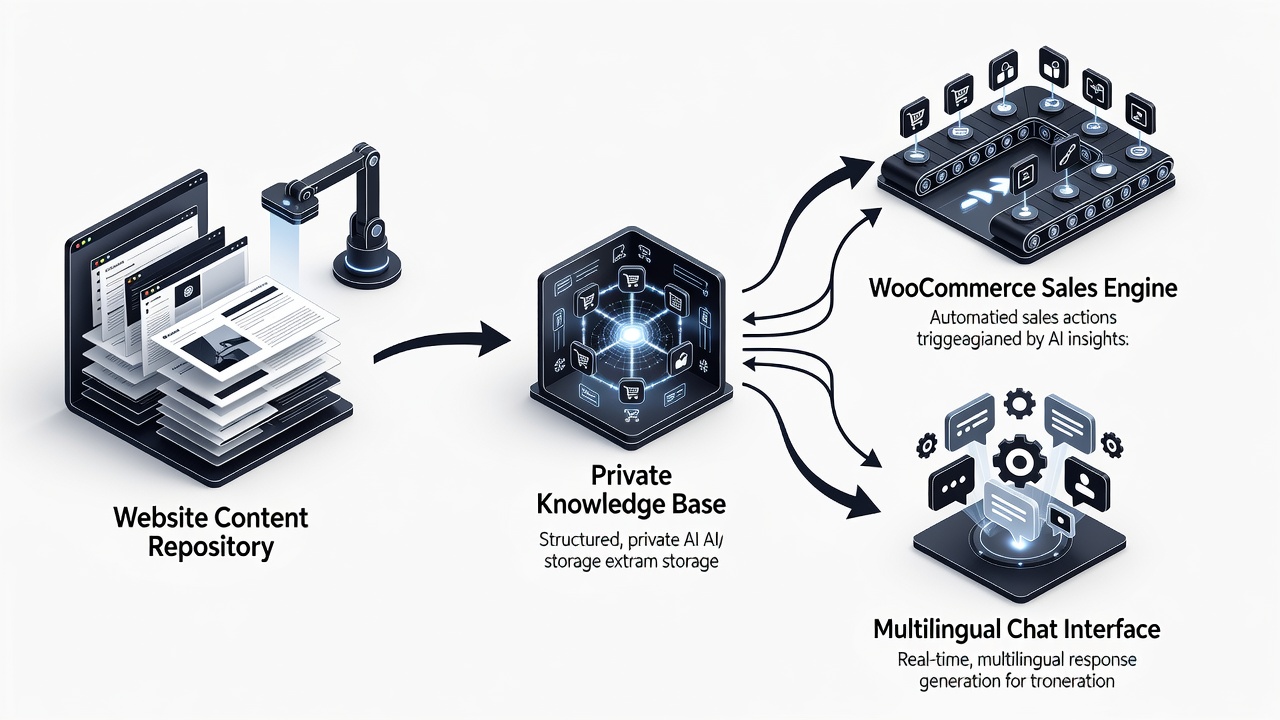
The private knowledge base operates on retrieval-augmented generation principles where site content is indexed into embeddings that the AI references during conversations. This approach keeps all data within the WordPress environment rather than sending information to external large language model providers. The plugin maintains compliance with data privacy expectations by restricting access through WordPress capability checks on every request.
- Scans published pages, posts, and WooCommerce products automatically
- Builds secure private knowledge base without third-party data sharing
- Supports product recommendations and order tracking actions
- Delivers responses in 40 or more languages
Prerequisites for IntelliAgent AI Installation
A current WordPress installation running version 6.0 or higher is necessary before beginning WordPress AI assistant plugin setup. WooCommerce must be active if sales features are required. Administrator access with capability to install plugins is also essential. In real-world implementations, sites that verify these prerequisites first experience fewer configuration issues and faster time to value.
WordPress version 6.0 introduced improved REST API performance and better background processing support that IntelliAgent AI relies upon during indexing. Sites running older versions may encounter compatibility errors when the plugin attempts to register its custom endpoints. Administrator rights ensure the plugin can create necessary database tables and schedule WP-Cron events without permission conflicts.
| Setup Phase | Time Required | Key Actions |
|---|---|---|
| Installation | 2 minutes | Upload ZIP via dashboard and activate |
| License Activation | 1 minute | Enter license key from purchase email |
| Knowledge Base Sync | 3-8 minutes | Run full site scan via plugin settings |
- Confirm WordPress 6.0 or newer is installed and updated
- Activate WooCommerce if product recommendations or order tracking are needed
- Verify administrator role for plugin installation rights
- Prepare the lifetime license key received after purchase
Dashboard Installation
Complete WordPress AI assistant plugin setup follows a straightforward sequence that any site administrator can execute without custom coding. Log in to the WordPress admin area and navigate to Plugins > Add New. Upload the IntelliAgent AI plugin ZIP file and click Activate. The plugin immediately appears in the left menu under IntelliAgent AI. According to industry standards, following each phase sequentially prevents common configuration errors and ensures the private knowledge base remains accurate. A common mistake businesses make is skipping the activation step, which leaves the plugin non-functional until manually enabled.
The upload process uses the standard WordPress plugin installer that validates the ZIP structure before extraction. Once extracted, the plugin registers its menu item and begins loading its core classes through the WordPress bootstrap. Administrators should immediately check the Plugins screen to confirm the status shows as active rather than inactive. Inactive plugins cannot schedule WP-Cron jobs or respond to REST API calls from the chat interface.
After activation, the plugin creates initial database tables for storing indexed content embeddings. These tables follow WordPress database prefix conventions and use InnoDB storage for reliable transaction support during large catalog scans. Site owners running managed WordPress hosts should verify that database permissions allow table creation before starting the process.
- Navigate to Plugins > Add New in the WordPress dashboard
- Upload the official IntelliAgent AI ZIP file
- Click Activate and verify the menu item appears
- Check for any activation notices related to missing dependencies
License Activation
Enter the lifetime license key obtained during purchase inside the plugin settings screen. Activation unlocks unlimited sites and removes any trial limitations. In modern business practice, lifetime licensing eliminates recurring costs and provides long-term ownership of the AI sales and support engine. Experienced developers often confirm the key status immediately after entry to avoid delays during subsequent training steps.
The license validation routine contacts a secure endpoint to verify the key against the purchase record. Once validated, the plugin stores an encrypted token locally that grants access to all features including unlimited site installations. This token also removes any rate limits that trial versions impose on knowledge base queries. Administrators managing multiple client sites benefit from the single key covering every domain without additional per-site purchases.
License status appears in the plugin dashboard with clear indicators for active, expired, or invalid states. If validation fails, the plugin displays the exact error message returned from the licensing server, allowing quick resolution through support channels. Regular checks ensure the key remains active after major WordPress core updates that might affect plugin communication.
- Locate the License tab inside IntelliAgent AI settings
- Paste the lifetime key exactly as received in the purchase email
- Click Activate and wait for successful confirmation message
- Verify unlimited site usage is now enabled
Knowledge Base Training
Trigger the initial content scan from the Knowledge Base tab. IntelliAgent AI indexes all published pages, posts, and WooCommerce products using WP-Cron background processing to keep server load minimal. The plugin follows WordPress coding standards using hooks, REST API, and AJAX for seamless integration while maintaining security through sanitization and capability checks. Technical SEO supports this phase by ensuring all content remains crawlable and properly structured before the scan begins.
WP-Cron operates as a pseudo-cron system within WordPress that executes scheduled tasks when visitors access the site. The plugin registers a custom event that processes content in batches of fifty items to avoid PHP timeout limits on shared hosting. Each batch extracts plain text, generates embeddings, and stores vector representations in the private knowledge base tables. Administrators can monitor progress through the admin bar indicator that updates every thirty seconds during active scans.
The REST API endpoints exposed by the plugin allow external tools to trigger rescan operations if content changes frequently. These endpoints require valid administrator nonces and capability verification before executing any indexing work. Security best practices recommend restricting API access through firewall rules or plugin-based IP allowlisting when operating high-traffic production sites.
- Open the Knowledge Base tab and click Start Full Scan
- Monitor batch progress through the admin bar indicator
- Review indexed content counts for pages, posts, and products
- Schedule periodic rescans after major content updates
WooCommerce Integration Configuration
WooCommerce integration turns the WordPress AI assistant plugin into a revenue-generating tool. Enable product recommendations, add-to-cart commands, and real-time order status lookup directly inside the chat window. No additional plugins or custom code are required. The result is faster support, automated FAQ management, and clearer insight into what visitors actually care about while serving a global audience with 40+ language support.
The integration registers custom WooCommerce action hooks that the AI can invoke during conversations. When a visitor requests order status, the plugin validates the provided order number against the current user session before returning details. Product recommendations pull from the indexed catalog using semantic similarity rather than simple keyword matching, improving relevance for complex queries. Add-to-cart commands execute through the standard WooCommerce cart API to maintain session consistency across the site.
Multilingual responses rely on the same indexed content but route through translation layers that preserve product attributes and pricing in the target language. This capability reduces support ticket volume for stores serving international customers without requiring separate language-specific knowledge bases. Performance remains consistent because embeddings are stored once and referenced dynamically during generation.
- Enable WooCommerce actions in the plugin settings panel
- Test product recommendation accuracy with sample customer queries
- Verify order status lookup works for logged-in users
- Confirm multilingual responses display correct currency and pricing
Frequently Asked Questions
How long does the initial knowledge base scan take? The initial scan typically completes within a few minutes depending on site size and number of published items. Larger sites with extensive product catalogs may require slightly more time due to background WP-Cron processing.
Can I use IntelliAgent AI on a staging site first? Yes, you can install and test IntelliAgent AI on staging environments before going live with full confidence. This approach allows verification of knowledge base accuracy and WooCommerce actions without impacting production traffic.
What are the prerequisites for installing the WordPress AI assistant plugin? A WordPress installation version 6.0 or higher, active WooCommerce for sales features, and administrator access are required to complete setup successfully.
How does WooCommerce integration work with the AI chat? The integration enables product recommendations, add-to-cart commands, and order status lookup directly in the chat interface without extra plugins.
Ready to automate your support and sales? Activate IntelliAgent AI now with lifetime access and start converting visitors into customers 24/7.