

WordPress AI assistant plugin installation guide resources help site owners deploy IntelliAgent AI quickly to create a secure private knowledge base from existing content. This setup enables accurate automated sales and support responses across WordPress and WooCommerce sites without custom development. Following the steps in this wordpress ai assistant plugin installation guide ensures the plugin scans pages, posts, and products correctly while supporting real actions such as product recommendations and order tracking. Site administrators benefit from a streamlined process that maintains data privacy and delivers multilingual responses to a global audience.
Table of Contents
- WordPress AI Assistant Plugin Overview
- Prerequisites for IntelliAgent AI Installation
- Step-by-Step WordPress AI Assistant Plugin Setup
- WooCommerce Integration Configuration
- Security Best Practices During Installation
- Performance Optimization for Knowledge Base Scans
- Advanced Configuration Options
- Frequently Asked Questions
WordPress AI Assistant Plugin Overview
IntelliAgent AI functions as a complete WordPress AI assistant plugin that scans existing pages, posts, and product data to build a secure private knowledge base. The plugin then uses this knowledge base to deliver accurate answers while executing real WooCommerce actions such as product recommendations and order tracking. This architecture keeps all data on the site owner’s server and avoids external data sharing. The private knowledge base updates automatically through WP-Cron background processing. This method maintains low server load while supporting 40+ languages for global audiences. Site owners gain faster support, automated FAQ handling, and direct insight into visitor interests through the resulting chat interface.
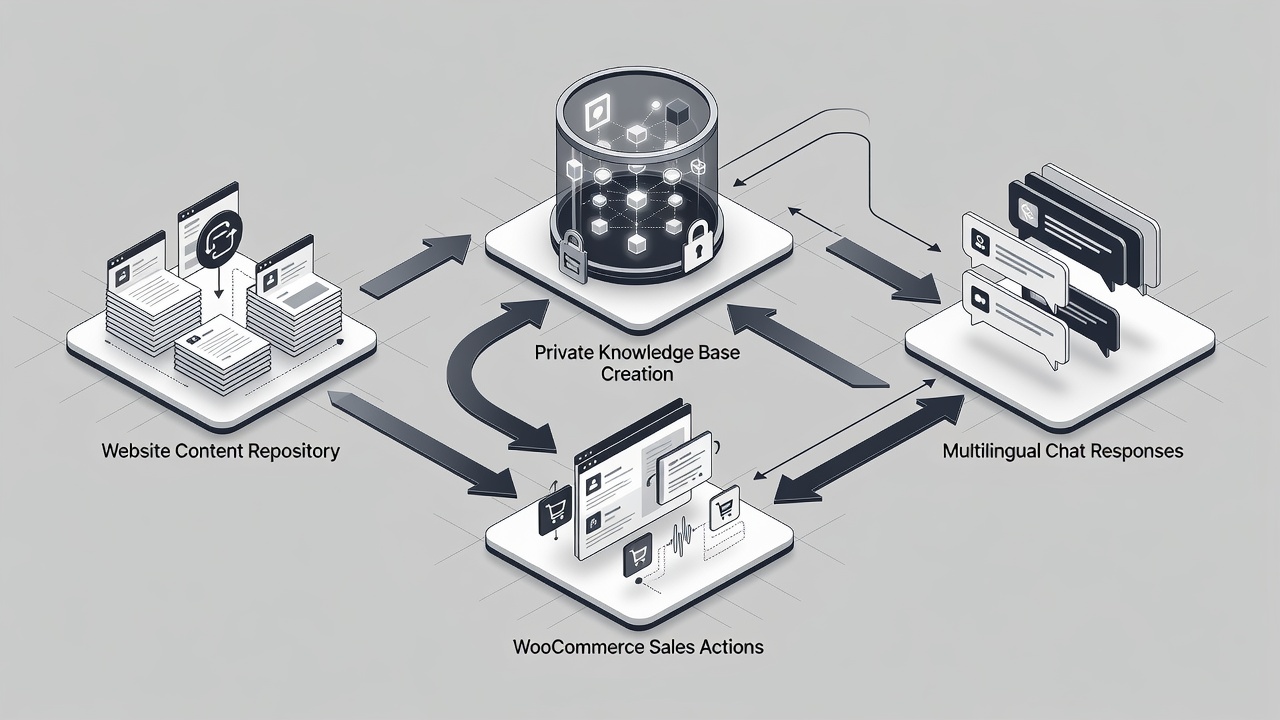
The core workflow begins with content indexing. IntelliAgent AI examines published WordPress content including pages, posts, and WooCommerce products. It converts this material into a structured private knowledge base that powers conversational responses. Because the knowledge base remains private, responses stay accurate to the site’s own data rather than relying on generic external models. This design supports both sales automation and customer support simultaneously within a single interface. In practice, the plugin integrates directly with WordPress hooks and REST API endpoints to ensure seamless operation without requiring additional developer intervention.
Prerequisites for IntelliAgent AI Installation
A current WordPress installation running version 6.0 or higher is required before starting the wordpress ai assistant plugin installation guide process. WooCommerce must be active if sales features such as product recommendations are needed. Administrator access with the capability to install plugins is also essential. These baseline requirements ensure the plugin can access necessary system resources and execute background tasks without permission errors. Sites that confirm these prerequisites before installation typically complete setup faster and encounter fewer compatibility issues during the knowledge base training phase.
Server environments should support standard WordPress hooks, REST API, and AJAX for seamless operation. No additional plugins or custom code are necessary for core functionality. The plugin follows WordPress coding standards using hooks, REST API, and AJAX for seamless integration while maintaining security through sanitization and capability checks. Administrators should verify that their hosting provider allows background WP-Cron jobs, as these handle the initial content scan and subsequent updates. Meeting these conditions prepares the site for a stable deployment of the WordPress AI assistant plugin.
Step-by-Step WordPress AI Assistant Plugin Setup
Complete WordPress AI assistant plugin setup follows a straightforward sequence that any site administrator can execute without custom coding. According to industry standards, following each phase sequentially prevents common configuration errors and ensures the private knowledge base remains accurate. The process divides into three primary phases that together take between six and eleven minutes on most sites. Each phase builds directly on the previous one, creating a reliable foundation for automated sales and support features.
Dashboard Installation Process
Log in to the WordPress admin area and navigate to Plugins > Add New. Upload the IntelliAgent AI plugin ZIP file and click Activate. The plugin immediately appears in the left menu under IntelliAgent AI. This initial upload step places the plugin files in the correct directory and registers it with the WordPress core. After activation, the plugin becomes available for further configuration through its dedicated settings panel. Administrators should avoid navigating away from the plugins screen until the activation confirmation message appears, ensuring the process completes without interruption.
License Activation Steps
Enter the lifetime license key obtained during purchase inside the plugin settings screen. Activation unlocks unlimited sites and removes any trial limitations. In modern business practice, lifetime licensing eliminates recurring costs and provides long-term ownership of the AI sales and support engine. Once the key is validated, the plugin gains access to full feature sets including advanced WooCommerce actions and expanded language support. Administrators receive immediate confirmation within the dashboard when activation succeeds, allowing them to proceed directly to knowledge base training.
Knowledge Base Training and Initial Scan
Trigger the initial content scan from the Knowledge Base tab. IntelliAgent AI indexes all published pages, posts, and WooCommerce products using WP-Cron background processing to keep server load minimal. The plugin follows WordPress coding standards using hooks, REST API, and AJAX for seamless integration while maintaining security through sanitization and capability checks. During this phase, the system creates a private knowledge base that powers all future chat responses. The scan duration typically ranges from three to eight minutes depending on the volume of content. Larger catalogs with hundreds of products may approach the upper end of this range because WP-Cron processes items in batches to avoid overwhelming server resources.
| Setup Phase | Time Required | Key Actions |
|---|---|---|
| Installation | 2 minutes | Upload ZIP via dashboard and activate |
| License Activation | 1 minute | Enter license key from purchase email |
| Knowledge Base Sync | 3-8 minutes | Run full site scan via plugin settings |
WooCommerce Integration Configuration
WooCommerce integration turns the WordPress AI assistant plugin into a revenue-generating tool. Enable product recommendations, add-to-cart commands, and real-time order status lookup directly inside the chat window. No additional plugins or custom code are required. The integration works by mapping WooCommerce data structures into the private knowledge base during the initial scan. Once enabled, the chat interface can execute actions such as suggesting relevant products based on visitor queries or retrieving current order status without leaving the conversation. This capability reduces support ticket volume while increasing conversion rates through immediate product guidance.
The result is faster support, automated FAQ management, and clearer insight into what visitors actually care about while serving a global audience with 40+ language support. Site owners can test these features on staging environments before applying them to production sites. Because the plugin uses existing WooCommerce hooks, product inventory and order data remain synchronized automatically. Administrators gain visibility into chat-driven interactions through the plugin dashboard, revealing which products generate the most interest and which support questions appear most frequently.
Security Best Practices During Installation
IntelliAgent AI maintains security through sanitization and capability checks built into its WordPress integration. These measures prevent unauthorized access to the private knowledge base and ensure that only administrators with proper permissions can trigger scans or modify settings. During the wordpress ai assistant plugin installation guide process, administrators should avoid sharing license keys or plugin files outside secure channels. The plugin’s use of REST API endpoints includes capability verification so that only logged-in users with appropriate roles can interact with sensitive configuration areas. This approach aligns with standard WordPress security practices and reduces exposure to common plugin vulnerabilities.
Capability checks also protect the WooCommerce actions layer. When product recommendations or order lookups execute inside the chat, the plugin verifies that the requesting session has appropriate access rights before returning data. Sanitization routines clean all incoming chat inputs to block injection attempts. Site owners who follow the sequential setup order described in this guide benefit from these protections activating at the correct stage. Regular review of WordPress user roles after installation further strengthens the overall security posture around the AI assistant.
Performance Optimization for Knowledge Base Scans
WP-Cron background processing keeps server load minimal during knowledge base scans. This design choice allows the initial indexing to run without interrupting visitor traffic or causing noticeable slowdowns. Administrators can optimize performance by scheduling the first scan during periods of lower site activity, particularly on stores with extensive product catalogs. The documented scan window of three to eight minutes reflects typical conditions on standard hosting environments. Sites with more than five hundred products may observe times closer to the upper limit because each product requires individual indexing into the private knowledge base.
After the initial scan completes, subsequent updates occur incrementally when new content is published. This incremental approach prevents the need for full rescans in most cases. Administrators can monitor scan progress through the plugin dashboard and restart a stalled process directly from the Knowledge Base tab if necessary. Because the plugin respects WordPress resource limits, it rarely requires additional server configuration. For high-traffic WooCommerce stores, testing the scan on a staging site first confirms that performance remains acceptable before production deployment.
Advanced Configuration Options
Once the basic wordpress ai assistant plugin installation guide steps are complete, administrators can explore additional configuration layers that enhance functionality. The multilingual support covering more than forty languages activates automatically after the knowledge base is trained, allowing the chat interface to respond in the visitor’s preferred language without manual selection. Product recommendation settings within the WooCommerce integration tab let site owners control how many suggestions appear per response and which product attributes receive priority during matching. These options fine-tune the balance between helpful automation and commercial objectives.
Order tracking features require only that WooCommerce order data exist in the private knowledge base. No separate API keys or external services are needed because the plugin reads directly from the local database using secure REST API calls. Administrators can also adjust the visibility of the chat widget on specific pages or posts through the plugin settings. This granular control supports targeted deployment, such as showing the AI assistant only on product or checkout pages where conversion impact is highest. All advanced options remain accessible through the same dashboard used during initial setup, maintaining a consistent administrative experience.
Frequently Asked Questions
How long does the initial knowledge base scan take? The initial scan typically completes within a few minutes depending on site size and number of published items. Larger sites with extensive product catalogs may require slightly more time due to background WP-Cron processing.
Can I use IntelliAgent AI on a staging site first? Yes, you can install and test IntelliAgent AI on staging environments before going live with full confidence. This approach allows verification of knowledge base accuracy and WooCommerce actions without impacting production traffic.
What happens if the scan fails on a large WooCommerce catalog? The plugin uses background processing that can be restarted from the Knowledge Base tab. Verifying server resources and reducing concurrent scans usually resolves temporary failures.
Does the plugin require WooCommerce to function? The plugin operates on standard WordPress content alone, but WooCommerce activation is necessary to enable product recommendations and order tracking features.
How often should the knowledge base be updated? The plugin automatically detects new content through WP-Cron, but administrators can trigger manual rescans after major site updates to ensure the private knowledge base reflects the latest pages and products.
Ready to automate your support and sales? Activate IntelliAgent AI now with lifetime access and start converting visitors into customers 24/7. Get IntelliAgent AI Now