
WordPress AI Knowledge Base Setup Guide 2026
The WordPress AI knowledge base setup process begins with installing the IntelliAgent AI plugin, followed by local encrypted storage of LLM API keys, automatic ingestion of public pages and uploaded files into the WordPress database, and activation of chat logging for continuous knowledge grounding. This creates a secure, self-contained knowledge hub that powers accurate AI responses without external data sharing.
Start Your Free WordPress AI Knowledge Base Trial
Table of Contents
- WordPress AI Knowledge Base Setup Guide Overview
- IntelliAgent AI Plugin Installation Requirements
- Website and Content Ingestion Configuration
- Administrator API Key Storage and LLM Connection
- Chat Interaction and Analytics Activation
- Data Portability Export and Retention Controls
WordPress AI Knowledge Base Setup Guide Overview
The IntelliAgent AI plugin transforms any WordPress site into a functional AI knowledge base by processing site content locally and enabling context-aware responses through third-party LLMs. In modern business practice, this approach ensures all data stays under site administrator control while delivering intelligent customer support and sales assistance.
IntelliAgent AI Plugin Installation Requirements
WordPress version compatibility requires a current installation with database access for local storage of all indexed data and chat logs. WooCommerce integration notes confirm the plugin works alongside existing store data without sharing payment information. A common mistake businesses make is overlooking role-based access controls during initial activation.
Website and Content Ingestion Configuration
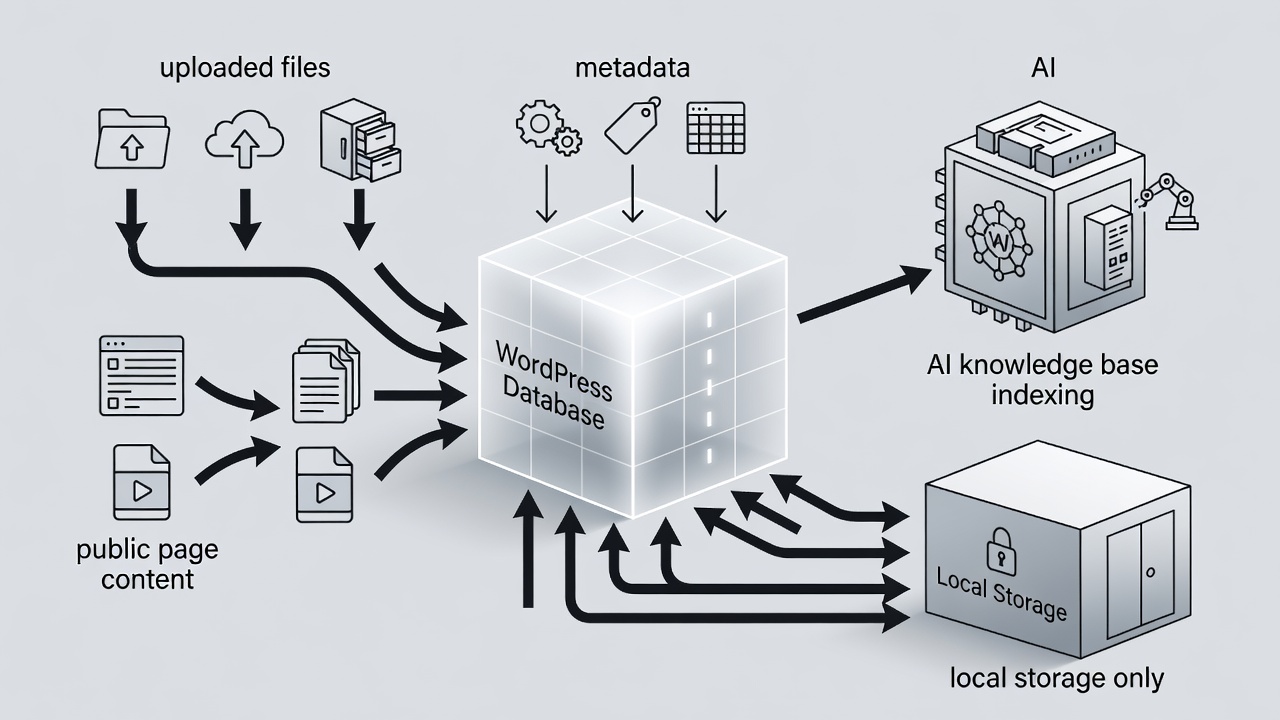
Website and Content Ingestion Configuration starts by enabling the plugin to process public page content, DOM elements, uploaded PDFs, TXT files, and images for AI grounding along with site structure metadata. According to industry standards, this local ingestion creates a reliable knowledge hub that supports accurate AI replies without external data movement.
Administrator API Key Storage and LLM Connection
Administrator API Key Storage and LLM Connection requires entering encrypted keys for OpenAI, Google Gemini, or xAI directly into the plugin settings so keys remain on the server and are never sent to ShahiSoft. In real-world implementations, this local encryption method prevents third-party access to sensitive credentials while allowing seamless AI response generation.
Chat Interaction and Analytics Activation
Chat Interaction and Analytics Activation collects conversation logs, anonymous user intent data, and feedback signals while keeping all information inside the WordPress database for summarization and export. The plugin uses these elements to improve performance and enable optional lead notifications without transmitting any data externally.
Data Portability Export and Retention Controls
| Data Type | Storage Location | Retention Control | Export Format |
|---|---|---|---|
| Conversation Logs | WordPress Database | Dashboard deletion | CSV |
| API Keys | Local encrypted storage | Never transmitted | N/A |
Ready to build your WordPress AI knowledge base? Try IntelliAgent AI Lite Version free today
Frequently Asked Questions
How long does content ingestion take during WordPress AI knowledge base setup?
Content ingestion begins immediately after configuration and processes public pages, uploaded files, and metadata into the local WordPress database.
Are chat logs visible to ShahiSoft during setup?
No. All chat logs remain stored locally in your WordPress database and are never transmitted to ShahiSoft servers.
Can I delete indexed content after WordPress AI knowledge base setup?
Yes. Administrators can delete chat logs or indexed content at any time directly from the IntelliAgent AI plugin dashboard.
Connect with a Specialist for wordpress ai knowledge base setup guide here: Start your free trial