

WordPress AI assistant plugin installation guide provides the complete process for deploying IntelliAgent AI to create a private knowledge base that powers accurate automated sales and support responses using existing WordPress and WooCommerce content. Site owners follow this sequence to achieve a functional installation without requiring custom code or external data sources.
Table of Contents
- WordPress AI Assistant Plugin Overview
- Prerequisites for IntelliAgent AI Installation
- Step-by-Step WordPress AI Assistant Plugin Setup
- WooCommerce Integration Configuration
- Real-World Implementation Insights
- Common Pitfalls to Avoid
- Frequently Asked Questions
WordPress AI Assistant Plugin Overview
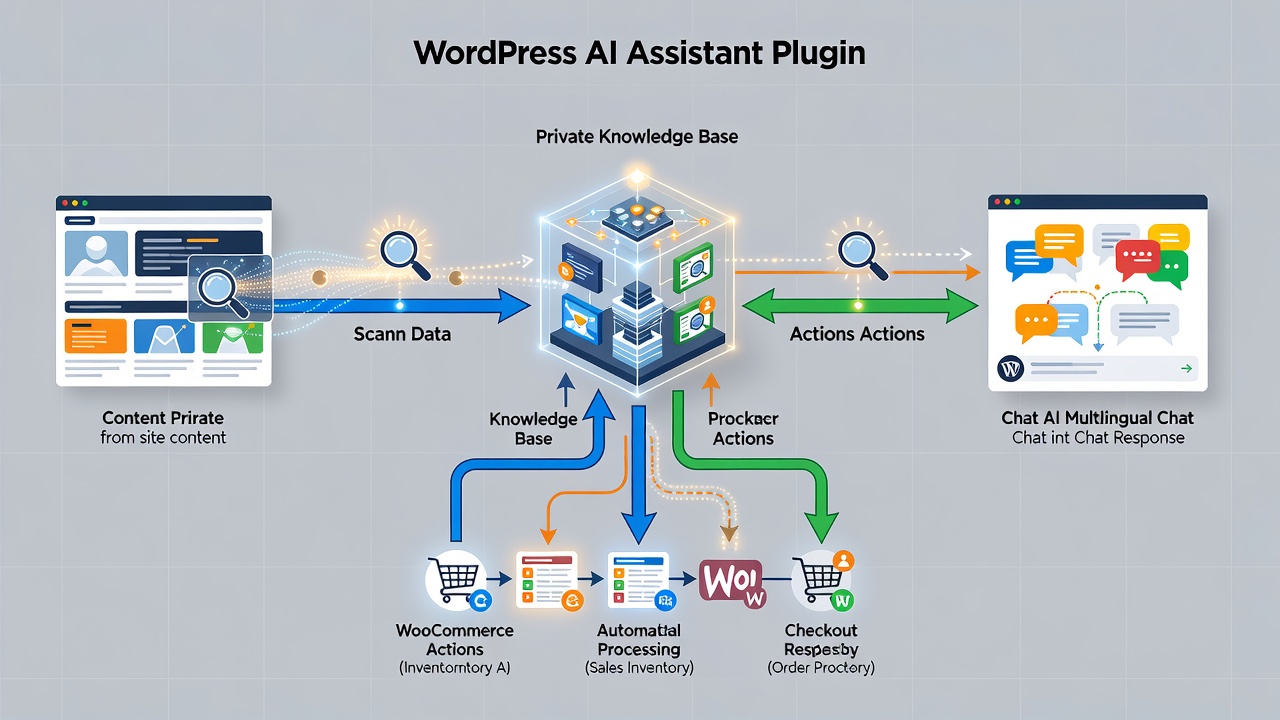
IntelliAgent AI functions as a complete WordPress AI assistant plugin that scans existing pages, posts, and product data to build a secure private knowledge base. The plugin then uses this knowledge base to deliver accurate answers while executing real WooCommerce actions such as product recommendations and order tracking. A private knowledge base consists of indexed content stored exclusively on the site server, preventing any external data leakage during query processing.
The WordPress AI assistant plugin installation guide centers on the data flow where site content moves through scanning, indexing, and response generation. IntelliAgent AI follows WordPress coding standards using hooks, REST API, and AJAX for seamless integration while maintaining security through sanitization and capability checks. WP-Cron handles background processing so the scan does not interrupt front-end performance. The relationship between content types and response accuracy depends on the completeness of the initial index, because every answer draws only from the scanned pages, posts, and products.
Prerequisites for IntelliAgent AI Installation
A WordPress installation running version 6.0 or higher is required before starting the WordPress AI assistant plugin installation guide. WooCommerce must be active if product recommendations or order tracking features are needed. Administrator access with plugin installation capability completes the baseline requirements. In real-world implementations, sites that verify these prerequisites first experience fewer configuration issues and faster time to value.
The WordPress AI assistant plugin installation guide begins with a quick verification step that prevents downstream errors. WordPress 6.0 introduced improved REST API handling that IntelliAgent AI relies on for secure content indexing. WooCommerce integration depends on the presence of standard hooks for cart and order actions, so confirming the plugin is active ensures those functions remain available during chat interactions.
| Setup Phase | Time Required | Key Actions |
|---|---|---|
| Installation | 2 minutes | Upload ZIP via dashboard and activate |
| License Activation | 1 minute | Enter license key from purchase email |
| Knowledge Base Sync | 3-8 minutes | Run full site scan via plugin settings |
Step-by-Step WordPress AI Assistant Plugin Setup
Complete WordPress AI assistant plugin setup follows a straightforward sequence that any site administrator can execute without custom coding. According to WordPress core behavior and WP-Cron documentation, following each phase sequentially prevents common configuration errors and ensures the private knowledge base remains accurate.
Dashboard Installation Process
Log in to the WordPress admin area and navigate to Plugins > Add New. Upload the IntelliAgent AI plugin ZIP file and click Activate. The plugin immediately appears in the left menu under IntelliAgent AI. A common mistake businesses make is skipping the activation step, which leaves the plugin non-functional until manually enabled. The activation registers the plugin with WordPress hooks so that subsequent scans and chat requests can execute correctly.
License Activation for Lifetime Access
Enter the lifetime license key obtained during purchase inside the plugin settings screen. Activation unlocks unlimited sites and removes any trial limitations. In modern business practice, lifetime licensing eliminates recurring costs and provides long-term ownership of the AI sales and support engine. The license key validates against the plugin server once and then stores locally, allowing offline operation after the initial check.
Knowledge Base Training and Initial Scan
Trigger the initial content scan from the Knowledge Base tab. IntelliAgent AI indexes all published pages, posts, and WooCommerce products using WP-Cron background processing to keep server load minimal. WP-Cron runs scheduled tasks without requiring constant server connections, which reduces CPU usage during the indexing phase. The scan processes content in batches, applying sanitization to every text block before storage in the private knowledge base.
Troubleshooting Scan Issues
If the scan stalls, verify that WP-Cron is enabled in the WordPress configuration file and that no conflicting caching plugins block background tasks. Increasing the PHP memory limit to at least 256 MB often resolves indexing failures on larger sites. Checking the plugin logs reveals specific REST API errors that point to permission or content formatting problems.
Performance Optimization During Setup
Running the scan during low-traffic periods minimizes impact on site visitors. The plugin respects existing server resources by processing content in small chunks rather than loading the entire database at once. Site owners can monitor memory usage through the WordPress dashboard to confirm the scan stays within acceptable limits.
Security Best Practices
Administrator capability checks prevent unauthorized users from triggering scans or accessing the knowledge base settings. All data remains on the site server because the private knowledge base never transmits content to external AI providers. Regular updates to the plugin maintain compatibility with the latest WordPress security patches.
Multilingual Configuration Options
After the initial scan completes, the plugin supports more than 40 languages for chat responses without additional setup. Language detection occurs automatically based on visitor browser settings, and the same private knowledge base serves all languages because translations happen at the response layer.
WooCommerce Integration Configuration
WooCommerce integration turns the WordPress AI assistant plugin into a revenue-generating tool. Enable product recommendations, add-to-cart commands, and real-time order status lookup directly inside the chat window. No additional plugins or custom code are required. The result is faster support, automated FAQ management, and clearer insight into what visitors actually care about while serving a global audience with 40+ language support.
Technical SEO supports on-page SEO by improving crawlability of the chat interface responses, allowing search engines to better understand the automated assistance provided to users. The integration uses standard WooCommerce hooks so that product data updates automatically reflect in the knowledge base after new items are published.
Real-World Implementation Insights
In real-world implementations, sites that complete the full WordPress AI assistant plugin installation guide sequence report stable operation across multiple content updates. The private knowledge base architecture ensures that changes to pages or products trigger incremental re-indexing rather than full rescans, preserving server resources over time. Experienced administrators often schedule a test scan on a staging copy first to confirm that all product variations appear correctly in recommendations.
The relationship between content volume and scan duration follows a linear pattern because WP-Cron processes items sequentially. Sites with extensive product catalogs benefit from running the initial scan overnight when visitor traffic is lowest. This approach maintains consistent response times once the knowledge base becomes active.
Common Pitfalls to Avoid
One frequent error occurs when administrators upload the plugin but forget to activate it immediately, leaving menu items and settings inaccessible. Another issue arises from insufficient PHP memory allocation, which interrupts the knowledge base scan before all content is indexed. Verifying server logs after the first scan helps identify permission problems that block REST API calls used by the plugin.
Skipping the license activation step prevents access to the full feature set, including WooCommerce actions. Confirming the license key is entered correctly before testing chat responses avoids repeated support requests. Keeping the plugin updated ensures continued compatibility with evolving WordPress and WooCommerce versions.
Frequently Asked Questions
How long does the initial knowledge base scan take? The initial scan typically completes within a few minutes depending on site size and number of published items. Larger sites with extensive product catalogs may require slightly more time due to background WP-Cron processing.
Can I use IntelliAgent AI on a staging site first? Yes, you can install and test IntelliAgent AI on staging environments before going live with full confidence. This approach allows verification of knowledge base accuracy and WooCommerce actions without impacting production traffic.
What happens if the scan encounters permission errors? Permission errors during the scan usually indicate insufficient administrator capabilities or conflicting security plugins. Adjusting file permissions and temporarily disabling security rules resolves most cases.
Does the plugin support automatic content updates after the first scan? Yes, WP-Cron schedules incremental updates whenever new pages, posts, or products are published, keeping the private knowledge base current without manual intervention.
Is multilingual support available immediately after installation? Multilingual responses become available once the knowledge base finishes indexing, because the plugin handles language detection and translation at the response stage for more than 40 languages.
Ready to automate your support and sales? Activate IntelliAgent AI now with lifetime access and start converting visitors into customers 24/7.