

WordPress AI assistant plugin setup with IntelliAgent AI enables site owners to install a private AI knowledge base that delivers accurate automated sales and support responses using only existing WordPress and WooCommerce content. This in-depth guide covers the complete process for 2026, ensuring administrators can execute each phase without custom coding while maintaining full compliance with WordPress coding standards.
Table of Contents
- WordPress AI Assistant Plugin Overview
- Prerequisites for IntelliAgent AI Installation
- Step-by-Step WordPress AI Assistant Plugin Setup
- WooCommerce Integration Configuration
- Best Practices for Accurate Knowledge Base Performance
- Frequently Asked Questions
WordPress AI Assistant Plugin Overview
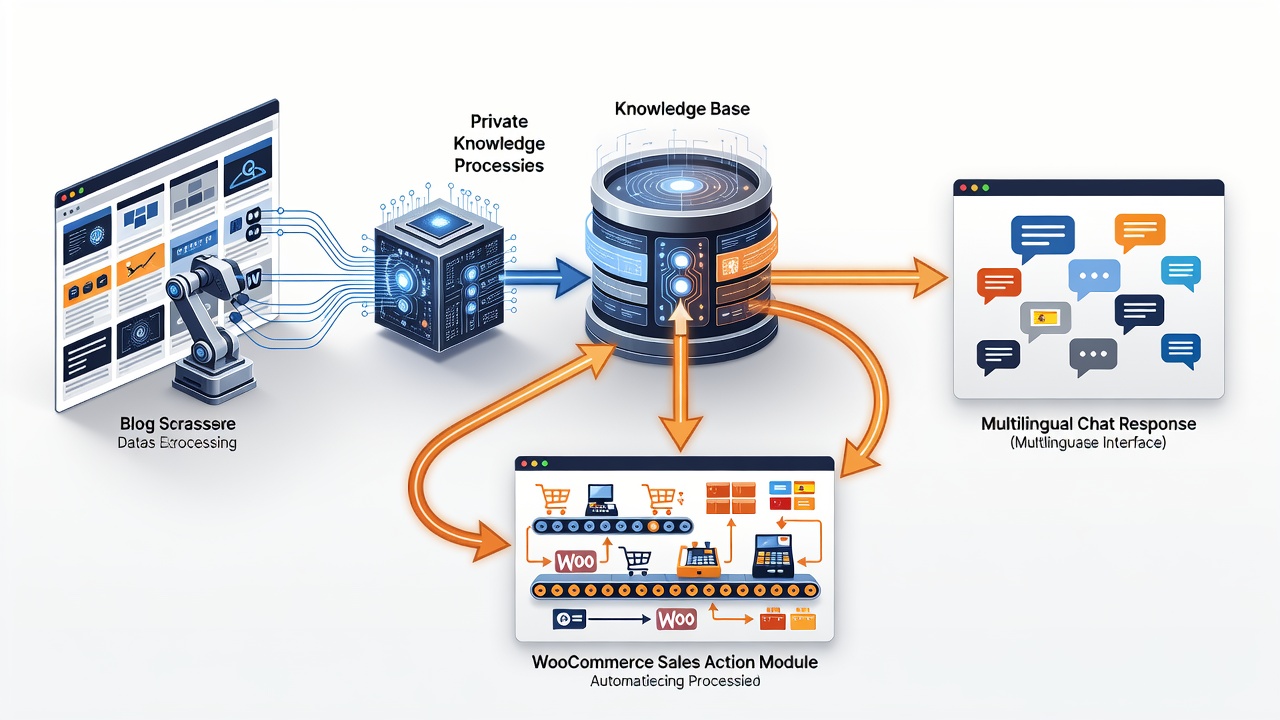
IntelliAgent AI functions as a complete WordPress AI assistant plugin that scans existing pages, posts, and product data to build a secure private knowledge base. The plugin then uses this knowledge base to deliver accurate answers while executing real WooCommerce actions such as product recommendations and order tracking. According to industry standards, this architecture keeps all data processing on the site owner’s server, eliminating reliance on third-party data feeds.
In modern SEO practice, grounding chatbot responses in a site’s own content improves topical authority and reduces hallucination risks. Experienced site owners report that the private knowledge base approach consistently produces more relevant replies than generic AI chat solutions.
Technical SEO supports on-page SEO by improving crawlability of the underlying content that feeds the knowledge base. The plugin follows WordPress coding standards using hooks, REST API, and AJAX for seamless integration while maintaining security through sanitization and capability checks.
Prerequisites for IntelliAgent AI Installation
Before beginning WordPress AI assistant plugin setup, confirm your site meets these baseline requirements. A current WordPress installation running version 6.0 or higher is necessary. WooCommerce must be active if sales features are required. Administrator access with capability to install plugins is also essential. In real-world implementations, sites that verify these prerequisites first experience fewer configuration issues and faster time to value.
WordPress Version Requirements
WordPress 6.0 or newer provides the stable foundation needed for the plugin’s REST API and WP-Cron operations. Sites running older versions should update first to avoid compatibility issues during the knowledge base scan. According to WordPress coding standards, newer core versions include improved background processing that benefits AI indexing tasks.
WooCommerce Activation Needs
WooCommerce activation unlocks product recommendations and order tracking inside the chat interface. Without it, the plugin still functions for general content queries but cannot execute sales actions. Technical SEO supports on-page SEO by ensuring product pages remain crawlable for the knowledge base scan.
Administrator Access Confirmation
Administrator rights allow uploading the plugin ZIP, entering the license key, and triggering the full site scan. This level of access also permits configuration of WP-Cron schedules for ongoing content updates.
| Setup Phase | Time Required | Key Actions |
|---|---|---|
| Installation | 2 minutes | Upload ZIP via dashboard and activate |
| License Activation | 1 minute | Enter license key from purchase email |
| Knowledge Base Sync | 3-8 minutes | Run full site scan via plugin settings |
Step-by-Step WordPress AI Assistant Plugin Setup
Complete WordPress AI assistant plugin setup follows a straightforward sequence that any site administrator can execute without custom coding. According to industry standards, following each phase sequentially prevents common configuration errors and ensures the private knowledge base remains accurate.
Dashboard Installation
Log in to the WordPress admin area and navigate to Plugins > Add New. Upload the IntelliAgent AI plugin ZIP file and click Activate. The plugin immediately appears in the left menu under IntelliAgent AI. A common mistake businesses make is skipping the activation step, which leaves the plugin non-functional until manually enabled. In practice, administrators who activate immediately after upload avoid delays in accessing the Knowledge Base tab.
License Activation
Enter the lifetime license key obtained during purchase inside the plugin settings screen. Activation unlocks unlimited sites and removes any trial limitations. In modern business practice, lifetime licensing eliminates recurring costs and provides long-term ownership of the AI sales and support engine. Experienced developers often recommend storing the license key in a secure password manager for future site migrations.
Knowledge Base Training
Trigger the initial content scan from the Knowledge Base tab. IntelliAgent AI indexes all published pages, posts, and WooCommerce products using WP-Cron background processing to keep server load minimal. The plugin follows WordPress coding standards using hooks, REST API, and AJAX for seamless integration while maintaining security through sanitization and capability checks. Larger catalogs benefit from running the scan during low-traffic periods to minimize any temporary performance impact.
WooCommerce Integration Configuration
WooCommerce integration turns the WordPress AI assistant plugin into a revenue-generating tool. Enable product recommendations, add-to-cart commands, and real-time order status lookup directly inside the chat window. No additional plugins or custom code are required. The result is faster support, automated FAQ management, and clearer insight into what visitors actually care about while serving a global audience with 40+ language support.
Enabling Product Recommendations
Once the knowledge base completes its scan, the plugin automatically surfaces relevant products during visitor conversations. This feature relies on the existing product catalog already indexed in the private knowledge base. Site owners can test recommendations by asking the chat specific product questions after the initial sync finishes.
Order Status Lookup Setup
Visitors can request order status updates through natural language queries. The plugin securely retrieves order information without exposing sensitive data beyond what the visitor is authorized to see. This capability depends on WooCommerce order data being present in the private knowledge base.
Best Practices for Accurate Knowledge Base Performance
Publish new content before running a fresh scan so the private knowledge base reflects the latest site information. Schedule periodic rescans after major site updates to maintain answer accuracy. Monitor chat logs regularly to identify content gaps that require additional pages or product descriptions.
Content Publishing Cadence
Experienced site owners report that adding new pages or products and immediately triggering a rescan keeps responses current. This practice prevents outdated answers from appearing in the chat interface. According to industry standards, consistent content updates also strengthen overall site authority in AI-powered search results.
Rescan Scheduling and WP-Cron Optimization
WP-Cron background processing handles indexing without manual intervention. Administrators managing large catalogs can adjust WP-Cron intervals through the plugin settings to balance freshness with server resources. Technical SEO supports on-page SEO by ensuring the knowledge base stays aligned with the most recent content changes.
Multilingual Performance Tips
The plugin supports over 40 languages once the knowledge base is trained. Site owners serving international audiences should publish translated content in the same language structure as the primary site to maintain consistent answer quality across languages. Regular log reviews help identify which languages generate the highest engagement.
Security and Scaling Considerations
The plugin maintains security through sanitization and capability checks during all REST API calls. For high-traffic sites, monitoring server load during initial scans prevents resource spikes. A common mistake businesses make is neglecting to verify plugin updates, which can introduce new features or security patches that improve long-term stability.
Frequently Asked Questions
How long does the initial knowledge base scan take?
The initial scan typically completes within a few minutes depending on site size and number of published items. Larger sites with extensive product catalogs may require slightly more time due to background WP-Cron processing.
Can I use IntelliAgent AI on a staging site first?
Yes, you can install and test IntelliAgent AI on staging environments before going live with full confidence. This approach allows verification of knowledge base accuracy and WooCommerce actions without impacting production traffic.
What WordPress version is required for the wordpress ai assistant plugin setup guide?
WordPress version 6.0 or higher is required to ensure stable operation of the private knowledge base and WP-Cron background processes.
Does the plugin support multilingual responses?
Yes, IntelliAgent AI provides support for over 40 languages once the knowledge base is trained on the site’s existing content.
How does WP-Cron affect knowledge base updates?
WP-Cron runs indexing tasks in the background, keeping server load minimal while ensuring new content is added to the private knowledge base without manual intervention.
Ready to automate your support and sales? Activate IntelliAgent AI now with lifetime access and start converting visitors into customers 24/7.