

Transforming your WordPress site into a 24/7 AI sales and support agent is a powerful way to drive conversions. With IntelliAgent AI, you can automate key e-commerce tasks by enabling its 24/7 product recommendation engine, instant order status lookup, and support-document-trained knowledge base.
This guide provides a step-by-step walkthrough based on the official v1.6 documentation, ensuring you configure your AI assistant correctly from the start. Follow this sequence to get your intelligent agent live and helping customers in minutes.
Table of Contents
- The Correct IntelliAgent AI Setup Sequence
- Step 1: Activate Your License Key
- Step 2: Configure Your AI Engine & API Keys
- Step 3: Sync Your Website & WooCommerce Store
- Step 4: Define Your AI Persona
- Advanced Customization and Training
- Common Issues & Troubleshooting
- IntelliAgent AI Setup Summary
- Frequently Asked Questions
The Correct IntelliAgent AI Setup Sequence
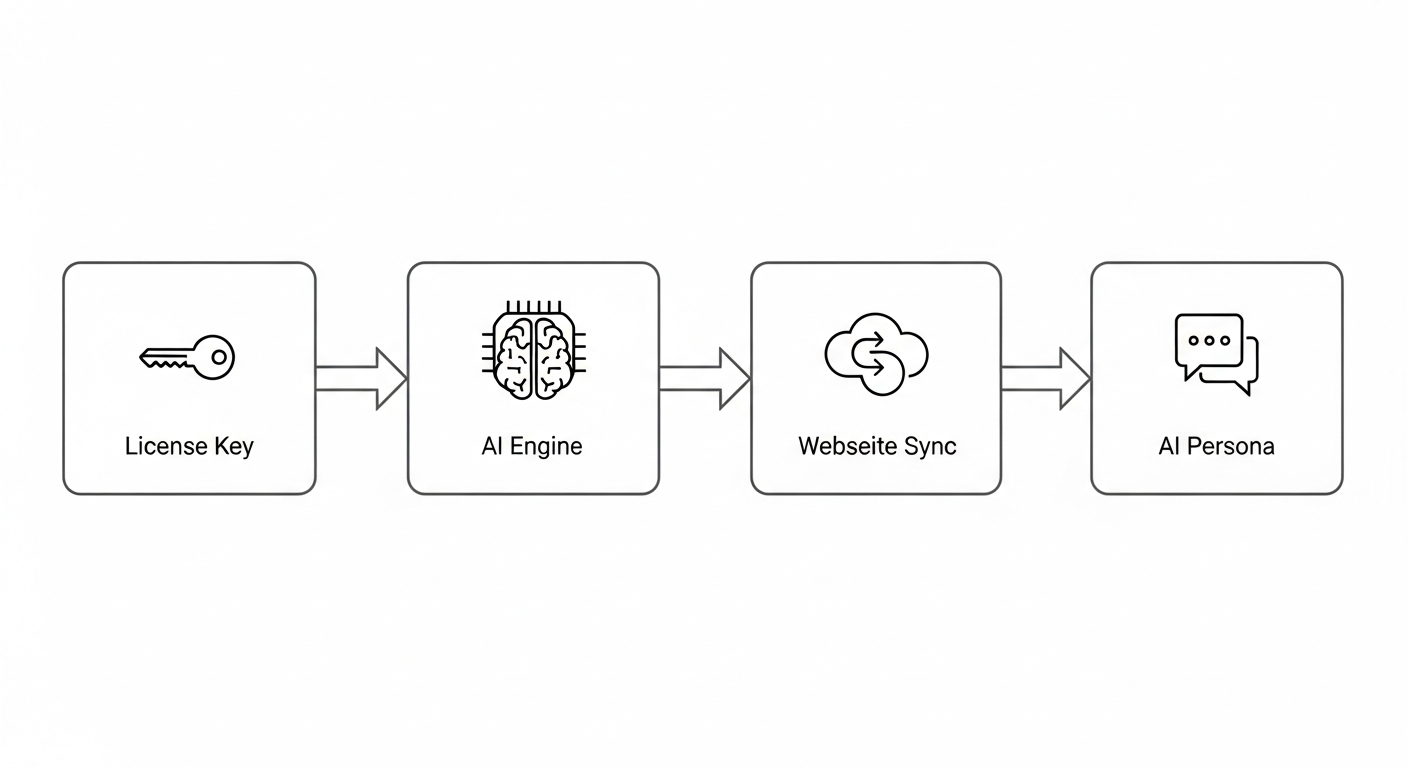
The IntelliAgent AI setup process is designed to be sequential. Following this exact order ensures that each component is configured correctly before the next one depends on it. The proper flow is: License Activation, then AI Engine Configuration, followed by Website & Store Sync, and finally, crafting the AI Persona.
Deviating from this sequence can lead to connection or content-syncing issues. Sticking to this proven path guarantees a smooth and successful launch of your AI agent.
Step 1: Activate Your License Key
License activation is the first and most critical step. It unlocks the Pro features and enables communication with its AI brain, known as a Large Language Model (LLM) like GPT-4. Without an active license, the core intelligence engine of the plugin will not function.
To begin, navigate to the License tab in your IntelliAgent AI dashboard. Paste your license key into the designated field and click Activate License. Upon successful validation, the status will change to “Active,” confirming that your lifetime ownership is verified and the plugin is ready for configuration.
Step 2: Configure Your AI Engine & API Keys
With your license active, it’s time to connect your agent to a powerful AI model. In the AI Engine tab, you can choose your preferred provider. IntelliAgent AI offers a future-proof infrastructure by supporting multiple leading models, including Grok, OpenAI (GPT models), and Google Gemini.
This flexibility allows you to switch between models at any time to balance cost and performance. Simply select your provider from the dropdown menu and input your corresponding API key. This action establishes a secure connection, enabling the real-time conversational reasoning required for sales and support tasks.
Step 3: Sync Your Website & WooCommerce Store
The Website Sync tab is where your AI agent builds its knowledge base. This feature automatically scans your entire WordPress ecosystem, including pages, blog posts, and your WooCommerce products. The process tokenizes your content, breaking it down into numerical representations (tokens) to create a searchable knowledge base the AI can instantly access.
For example, after syncing, the AI can accurately answer customer questions such as, “Do you offer the blue t-shirt in size large?” or “What is your return policy?” by referencing your live product data and pages. The system uses WP-Cron, WordPress’s internal scheduling system, to automatically keep your content updated in the background, ensuring the AI’s knowledge is always current.
Step 4: Define Your AI Persona
Finally, in the AI Persona tab, you define how your AI assistant communicates and behaves. This is where you shape its personality to align with your brand voice. For instance, you could define a persona that is ‘a friendly and helpful expert on vintage guitars, always enthusiastic and ready to offer recommendations based on a customer’s favorite music genre.’
A common mistake businesses make is leaving the AI persona too generic. To prevent your AI from answering off-topic questions, add a specific rule in its instructions, such as: ‘If a user asks a question unrelated to our products or services, politely state that you can only assist with store-related inquiries.’ This keeps the conversation focused and productive.
You can also use the powerful “Auto-Generate from Website Content” button. This feature creates a custom persona that understands your specific product line and brand voice automatically, saving you time and ensuring brand consistency from day one.
Advanced Customization and Training
Once the core setup is complete, IntelliAgent AI offers a suite of tools to further refine your agent. These settings allow you to tailor every aspect of the user experience and improve the AI’s accuracy over time.
- Visual Appearance: Customize the chat interface with light and dark modes, custom avatars, and brand colors. A live preview in the admin sidebar shows your changes instantly.
- Content Settings: Modify the assistant’s display name, placeholder text, and configure its language. With support for over 40 languages, you can serve a global audience without extra plugins.
- Document Training: Upload specialized files like product manuals or PDFs to give the AI access to knowledge that isn’t publicly available on your website pages.
- Feedback & AI Training: Review visitor conversations and correct unhelpful AI responses. This process “trains” your agent, continuously improving its accuracy for future interactions.
- FAQ Management: Create a verified database of answers for frequently asked questions about shipping, refunds, or store policies. The AI prioritizes this data to ensure 100% accuracy on critical information.
Common Issues & Troubleshooting
Even with a smooth setup, you might encounter a few common hurdles. Here’s how experienced developers often address them:
- Problem: API Key Not Working. If you receive an error after entering your API key, first check for simple mistakes like extra spaces or typos. Then, verify that the key has the correct permissions and that your billing information is active with the AI provider (OpenAI, Google, etc.).
- Problem: Website Sync is Slow or Incomplete. The initial sync can take several minutes for websites with a large amount of content or many products. If it seems stuck, ensure your server’s WP-Cron is functioning correctly and that there are no server-level restrictions blocking the process.
- Problem: The AI Gives Repetitive or Generic Answers. This is almost always a sign that the AI Persona needs more detail. Go back to the ‘AI Persona’ tab and add more specific instructions about your brand, tone, and the types of queries it should handle. Using the auto-generate feature can often resolve this by providing a stronger foundation.
IntelliAgent AI Setup Summary
To ensure a successful launch, it’s essential to follow the four core setup steps in the correct order. Each stage builds upon the last, from authentication to knowledge base creation. The table below provides a quick summary of each critical step and its primary function.
| Step | Admin Tab | Primary Function |
|---|---|---|
| 1. Activation | License | Unlocks Pro features and enables the AI engine. |
| 2. Configuration | AI Engine | Connects the plugin to your chosen LLM (Grok, OpenAI, Gemini). |
| 3. Syncing | Website Sync | Builds the AI’s knowledge base from your pages and WooCommerce products. |
| 4. Persona | AI Persona | Defines the AI’s brand voice and operational instructions. |
Frequently Asked Questions
What AI models does IntelliAgent AI support?
IntelliAgent AI provides flexibility by supporting multiple leading AI models, including Grok, OpenAI (GPT), and Google Gemini. You can switch between these providers at any time from the ‘AI Engine’ tab to manage costs or leverage the specific reasoning capabilities of a particular model.
How does IntelliAgent AI learn about my WooCommerce products?
The plugin uses a ‘Website Sync’ feature that automatically scans, imports, and tokenizes all your WooCommerce products, along with your website’s pages and posts. This process creates a comprehensive knowledge base, which is kept up-to-date automatically via WP-Cron, allowing the AI to provide accurate recommendations and order assistance.
Can I change the look of the chat window?
Yes, the visual appearance of the chat interface is fully customizable. In the ‘Visual Appearance’ tab, you can select light or dark themes, change the primary brand colors, and upload a custom avatar for your assistant. A live preview sidebar lets you see your style changes in real-time.
What happens if I need technical support during the IntelliAgent AI setup?
If you encounter any technical issues during the setup process, you can get help directly from the support team. The documentation provides clear links to the official technical support portal for opening a ticket. For other inquiries, you can also use the main contact form.
Completing your IntelliAgent AI setup is a straightforward process that transforms your website into an automated, intelligent powerhouse. By following these steps, you can stop losing leads and start providing instant, 24/7 support that guides visitors toward conversion.
Ready to deploy a digital employee on your website? Get IntelliAgent AI today and experience the future of automated customer engagement and sales.