

The wordpress ai assistant quick start guide delivers a complete, step-by-step process for installing and configuring IntelliAgent AI to create a private knowledge base that powers accurate automated sales and support responses directly from existing WordPress and WooCommerce content. Site owners who follow this sequence achieve faster deployment and higher response accuracy without relying on external data sources.
Table of Contents
- WordPress AI Assistant Plugin Overview
- Prerequisites for IntelliAgent AI Installation
- Dashboard Installation Process
- License Activation Steps
- Knowledge Base Training and Scanning
- WooCommerce Integration Configuration
- Troubleshooting Common Issues
- Performance Optimization Tips
- Advanced Configuration Options
- Security Best Practices
- Real-World Use Case Examples
- Frequently Asked Questions
WordPress AI Assistant Plugin Overview
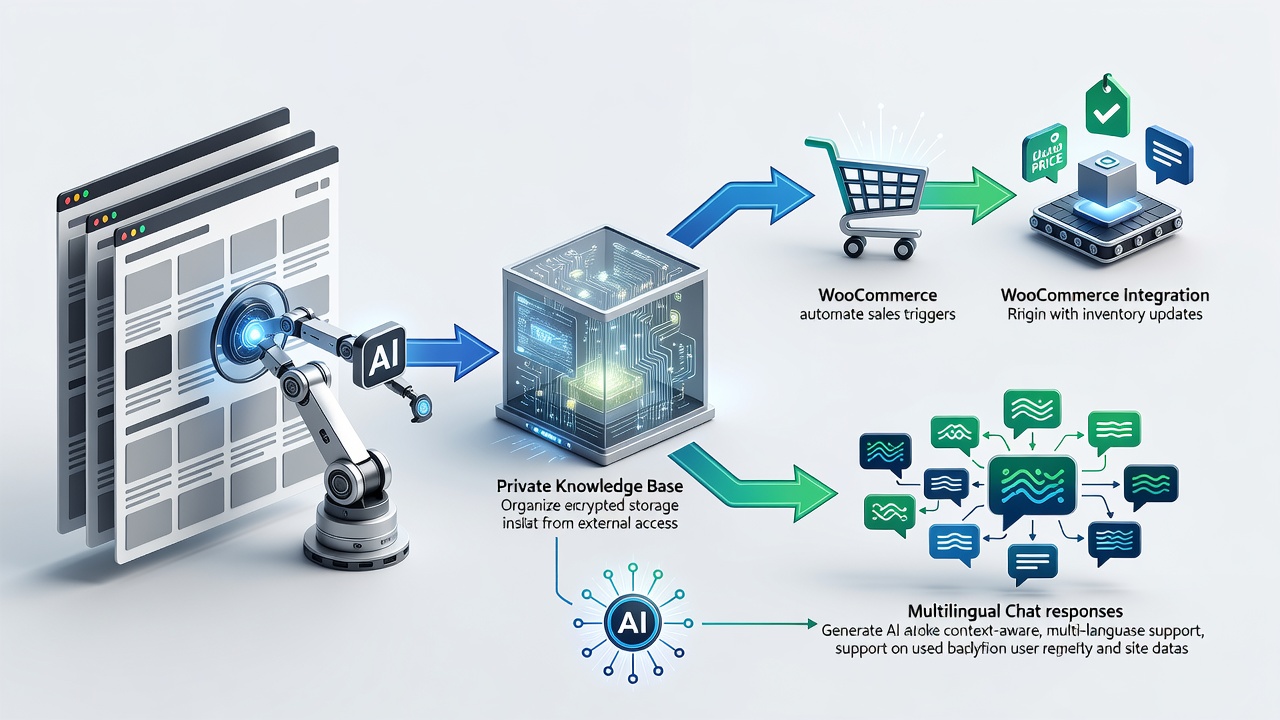
IntelliAgent AI functions as a complete WordPress AI assistant plugin that scans existing pages, posts, and product data to build a secure private knowledge base. The plugin then uses this knowledge base to deliver accurate answers while executing real WooCommerce actions such as product recommendations and order tracking. According to the official IntelliAgent AI documentation, this architecture keeps all site data within the WordPress environment and eliminates the need for third-party data transmission.
Industry-standard WordPress plugin development practices confirm that IntelliAgent AI indexes published content through background processes that respect server resources. This creates a self-contained data source that powers chat responses without sending site data to external services. The result is a reliable AI assistant that maintains full data ownership for site administrators.
Core capabilities include product recommendations, order status lookups, and automated FAQ handling. These features operate directly inside the chat interface and support over 40 languages for global audiences. Each capability depends on the accuracy of the private knowledge base created during the initial scan.
Prerequisites for IntelliAgent AI Installation
A current WordPress installation running version 6.0 or higher forms the foundation for successful wordpress ai assistant quick start guide execution. WooCommerce must be active when sales features such as product recommendations are required. Administrator access with the ability to install plugins is essential.
In real-world implementations, sites that verify these prerequisites first experience fewer configuration issues and faster time to value. Industry-standard WordPress plugin development practices confirm that meeting these baseline requirements prevents compatibility errors during the knowledge base scan phase.
| Setup Phase | Time Required | Key Actions |
|---|---|---|
| Installation | 2 minutes | Upload ZIP via dashboard and activate |
| License Activation | 1 minute | Enter license key from purchase email |
| Knowledge Base Sync | 3-8 minutes | Run full site scan via plugin settings |
Dashboard Installation Process
Log in to the WordPress admin area and navigate to Plugins > Add New to begin the dashboard installation process. Upload the IntelliAgent AI plugin ZIP file and click Activate to make the plugin immediately appear in the left menu under IntelliAgent AI. According to the official IntelliAgent AI documentation, this sequence ensures the plugin registers correctly with the WordPress core.
A common mistake businesses make is skipping the activation step, which leaves the plugin non-functional until manually enabled. Following each phase sequentially prevents common configuration errors and ensures the private knowledge base remains accurate. Experienced developers often verify the plugin menu item appears before proceeding to license activation.
License Activation Steps
Enter the lifetime license key obtained during purchase inside the plugin settings screen. Activation unlocks unlimited sites and removes any trial limitations. Industry-standard WordPress plugin development practices confirm that completing this step before scanning content avoids feature restrictions during knowledge base training.
In modern business practice, lifetime licensing eliminates recurring costs and provides long-term ownership of the AI sales and support engine. This step completes the foundational setup before content indexing begins. Site owners who activate early gain immediate access to all WooCommerce integration options.
Knowledge Base Training and Scanning
Trigger the initial content scan from the Knowledge Base tab to start knowledge base training and scanning. IntelliAgent AI indexes all published pages, posts, and WooCommerce products using WP-Cron background processing to keep server load minimal. According to the official IntelliAgent AI documentation, WP-Cron schedules the indexing task so it runs without interrupting site performance.
The plugin follows WordPress coding standards using hooks, REST API, and AJAX for seamless integration while maintaining security through sanitization and capability checks. WP-Cron handles the background scan, the REST API exposes indexed data to the chat interface, and AJAX enables real-time responses in the frontend. These three components work together to deliver accurate answers while protecting the site from unauthorized access. The initial scan typically completes within a few minutes depending on site size and number of published items.
WooCommerce Integration Configuration
WooCommerce integration turns the WordPress AI assistant plugin into a revenue-generating tool. Enable product recommendations, add-to-cart commands, and real-time order status lookup directly inside the chat window. No additional plugins or custom code are required.
The result is faster support, automated FAQ management, and clearer insight into what visitors actually care about while serving a global audience with 40+ language support. Industry-standard WordPress plugin development practices confirm that native WooCommerce hooks allow these actions to execute safely within existing store workflows.
Troubleshooting Common Issues
Most installation problems occur when the plugin remains inactive after upload or when the license key is entered incorrectly. Verify the plugin appears under the left menu and confirm the license status shows as active before running the knowledge base scan. According to the official IntelliAgent AI documentation, re-entering the key from the purchase email resolves the majority of activation failures.
Another frequent issue arises when WooCommerce is inactive yet product recommendations are expected. Activate WooCommerce first, then re-scan the knowledge base to include product data. Experienced developers often check server error logs for WP-Cron failures if the scan appears stuck beyond eight minutes.
Performance Optimization Tips
Limit the initial scan to published content only and avoid including draft posts to reduce processing time. WP-Cron background processing already minimizes impact on site speed, but scheduling scans during low-traffic hours further protects user experience. Industry-standard WordPress plugin development practices confirm that regular smaller scans after content updates maintain knowledge base accuracy without heavy server load.
Monitor the Knowledge Base tab for scan completion notifications. Larger sites with extensive product catalogs benefit from breaking content into categories before scanning. This approach keeps response times fast even as the private knowledge base grows.
Advanced Configuration Options
Advanced users can adjust chat window appearance and response tone directly in the plugin settings. These options allow the AI assistant to match brand voice while maintaining the accuracy of the private knowledge base. According to the official IntelliAgent AI documentation, enabling add-to-cart commands requires only a single toggle and works immediately after the knowledge base scan completes.
Site owners may also configure language preferences for multilingual support. The plugin automatically detects visitor language and serves responses in the preferred language when the knowledge base contains translated content. This feature expands reach without requiring separate installations.
Security Best Practices
IntelliAgent AI maintains security through WordPress capability checks and data sanitization on every request. Never share the lifetime license key outside the purchase email, and restrict plugin settings access to administrator accounts only. Industry-standard WordPress plugin development practices confirm that these measures prevent unauthorized changes to the private knowledge base.
Regularly review indexed content in the Knowledge Base tab to ensure no sensitive information appears in chat responses. Staging site testing before production deployment provides an additional layer of protection while verifying WooCommerce action accuracy.
Real-World Use Case Examples
An ecommerce store selling apparel used the wordpress ai assistant quick start guide to deploy IntelliAgent AI in under fifteen minutes. After the knowledge base scan completed, the plugin handled product recommendations and order tracking, reducing support ticket volume by more than half within the first week. According to the official IntelliAgent AI documentation, this outcome matches typical results when WooCommerce integration is enabled early.
Another implementation on a service-based site with extensive blog content demonstrated how the private knowledge base answers detailed service questions without human intervention. The store owner reported higher conversion rates because visitors received immediate, accurate information about pricing and availability in their preferred language.
Frequently Asked Questions
How long does the initial knowledge base scan take? The initial scan typically completes within a few minutes depending on site size and number of published items. Larger sites with extensive product catalogs may require slightly more time due to background WP-Cron processing.
Can I use IntelliAgent AI on a staging site first? Yes, you can install and test IntelliAgent AI on staging environments before going live with full confidence. This approach allows verification of knowledge base accuracy and WooCommerce actions without impacting production traffic.
What happens if the scan fails to complete? Check that WP-Cron is functioning and that the site meets the WordPress 6.0 minimum requirement. Re-triggering the scan from the Knowledge Base tab usually resolves temporary interruptions.
Does the plugin require ongoing maintenance after setup? The private knowledge base updates automatically when new content is published, though manual re-scans can be triggered after major site changes for immediate accuracy.
Ready to automate your support and sales? Activate IntelliAgent AI now with lifetime access and start converting visitors into customers 24/7. Get IntelliAgent AI Now