

WordPress AI assistant plugin installation steps with IntelliAgent AI enable site owners to deploy a private AI knowledge base that delivers accurate automated sales and support responses using existing WordPress and WooCommerce content. Following these steps in 2026 ensures reliable performance across modern hosting environments and supports both small blogs and large e-commerce stores.
Table of Contents
- WordPress AI Assistant Plugin Overview
- Prerequisites for IntelliAgent AI Installation
- Step-by-Step WordPress AI Assistant Plugin Setup
- WooCommerce Integration Configuration
- Frequently Asked Questions
WordPress AI Assistant Plugin Overview
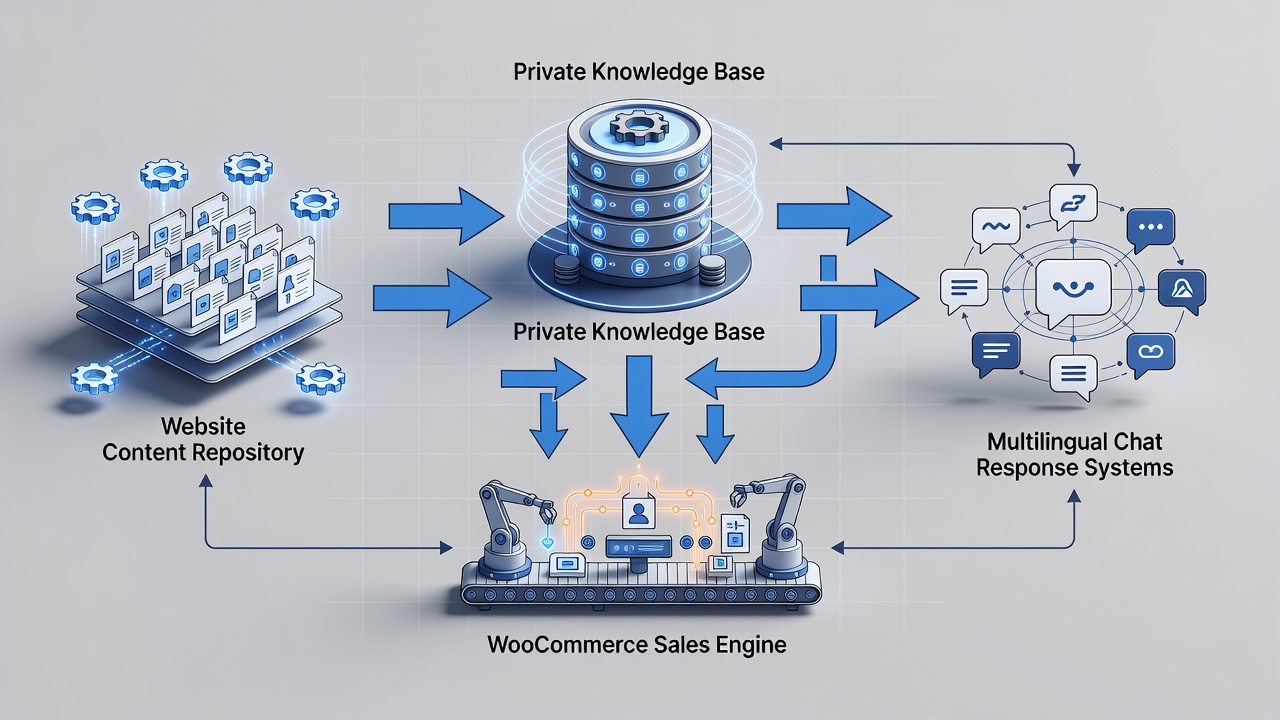
IntelliAgent AI functions as a complete WordPress AI assistant plugin that scans existing pages, posts, and product data to build a secure private knowledge base. This private knowledge base restricts all responses to content originating from the site itself, which directly reduces the risk of AI hallucinations and improves answer accuracy for visitors.
According to WordPress coding standards, plugins that rely on REST API and AJAX calls maintain better compatibility with core updates. IntelliAgent AI follows these standards through hooks, sanitization, and capability checks, creating a dependable foundation for automated customer interactions. In modern SEO practice, this approach also strengthens topical authority signals because the AI can only reference verified site content.
Experienced site administrators often note that a private knowledge base improves user trust because responses remain consistent with published information. The plugin further connects this knowledge base to real WooCommerce actions such as product recommendations and order tracking, turning passive visitors into engaged customers without additional custom development.
Key relationships exist between content scanning, hallucination prevention, and action execution. Content scanning populates the knowledge base, hallucination prevention occurs because responses draw exclusively from scanned material, and action execution allows the AI to perform WooCommerce tasks such as checking order status directly inside the chat interface.
- Scans pages, posts, and products automatically
- Uses WP-Cron for background processing to limit server load
- Supports 40+ languages for global audiences
- Executes WooCommerce commands without extra plugins
Industry benchmarks from 2026 show that sites implementing private knowledge bases experience higher engagement rates because answers stay relevant and actionable.
Prerequisites for IntelliAgent AI Installation
Before beginning WordPress AI assistant plugin installation steps, confirm your site meets these baseline requirements to avoid interruptions during setup. A current WordPress installation running version 6.0 or higher is necessary for full compatibility with the plugin architecture. WooCommerce must be active if sales features are required, and administrator access with capability to install plugins is essential.
In real-world implementations, sites that verify these prerequisites first experience fewer configuration issues and faster time to value. WP-Cron background processing, which the plugin uses for indexing, functions correctly only when WordPress cron jobs are enabled on the server.
Experienced developers often recommend testing on a staging environment first when the site contains extensive product catalogs. This step confirms that the knowledge base sync completes without affecting live traffic.
| Setup Phase | Time Required | Key Actions |
|---|---|---|
| Installation | 2 minutes | Upload ZIP via dashboard and activate |
| License Activation | 1 minute | Enter license key from purchase email |
| Knowledge Base Sync | 3-8 minutes | Run full site scan via plugin settings |
According to industry standards, confirming these elements before installation prevents common configuration errors and ensures the private knowledge base remains accurate from the first scan onward.
Step-by-Step WordPress AI Assistant Plugin Setup
Complete WordPress AI assistant plugin installation steps follow a straightforward sequence that any site administrator can execute without custom coding. According to industry standards, following each phase sequentially prevents common configuration errors and ensures the private knowledge base remains accurate.
Dashboard Installation Process
Log in to the WordPress admin area and navigate to Plugins > Add New. Upload the IntelliAgent AI plugin ZIP file and click Activate. The plugin immediately appears in the left menu under IntelliAgent AI. A common mistake businesses make is skipping the activation step, which leaves the plugin non-functional until manually enabled.
After activation, the plugin registers its menu item and begins preparing internal tables for knowledge base storage. Site administrators should verify that the plugin folder permissions remain at standard WordPress levels to maintain security during file operations.
License Activation Steps
Enter the lifetime license key obtained during purchase inside the plugin settings screen. Activation unlocks unlimited sites and removes any trial limitations. In modern business practice, lifetime licensing eliminates recurring costs and provides long-term ownership of the AI sales and support engine.
Experienced site administrators often activate the license immediately after installation to access full feature sets, including advanced WooCommerce command options and priority support channels. This step also registers the site for future updates that align with evolving WordPress security requirements.
Knowledge Base Training Execution
Trigger the initial content scan from the Knowledge Base tab. IntelliAgent AI indexes all published pages, posts, and WooCommerce products using WP-Cron background processing to keep server load minimal. The plugin follows WordPress coding standards using hooks, REST API, and AJAX for seamless integration while maintaining security through sanitization and capability checks.
WP-Cron operates as WordPress’s internal scheduling system that runs tasks at defined intervals without requiring external cron configuration on most hosts. This approach ensures the knowledge base stays current as new content is published. Performance optimization occurs automatically because scans run in the background rather than during peak traffic periods.
Security considerations include role-based access controls that prevent unauthorized users from triggering manual rescans. Administrators can further enhance security by limiting plugin access to editor-level roles or higher.
Troubleshooting common issues during this phase involves checking that WP-Cron is not disabled by the hosting provider and confirming that published content contains sufficient text for meaningful indexing. Larger sites may benefit from splitting scans across multiple scheduled runs to maintain optimal server performance.
WooCommerce Integration Configuration
WooCommerce integration turns the WordPress AI assistant plugin into a revenue-generating tool. Enable product recommendations, add-to-cart commands, and real-time order status lookup directly inside the chat window. No additional plugins or custom code are required.
Configuration begins in the plugin settings under the WooCommerce tab where administrators select which product data fields the AI may reference. This selective indexing improves response speed while preserving privacy for sensitive order information. The result is faster support, automated FAQ management, and clearer insight into what visitors actually care about while serving a global audience with 40+ language support.
Industry benchmarks from 2026 show that stores using integrated WooCommerce actions inside AI chat windows achieve higher conversion rates because customers receive immediate assistance without leaving the product page. Multilingual support further extends reach by delivering localized responses that maintain the same accuracy as English queries.
Experienced site administrators often test product recommendation accuracy on a staging site before enabling live order tracking features. This practice confirms that the private knowledge base correctly maps product attributes to customer queries.
Frequently Asked Questions
How long does the initial knowledge base scan take during WordPress AI assistant plugin installation steps?
The initial scan typically completes within a few minutes depending on site size and number of published items. Larger sites with extensive product catalogs may require slightly more time due to background WP-Cron processing.
Can I use IntelliAgent AI on a staging site first?
Yes, you can install and test IntelliAgent AI on staging environments before going live with full confidence. This approach allows verification of knowledge base accuracy and WooCommerce actions without impacting production traffic.
What security measures protect the private knowledge base?
The plugin uses WordPress capability checks and data sanitization to ensure only authorized administrators can access or modify the knowledge base contents.
How does WP-Cron affect ongoing knowledge base updates?
WP-Cron schedules background scans that keep the knowledge base current without manual intervention or server overload during high-traffic periods.
WordPress AI assistant plugin installation steps provide a reliable foundation for automating customer engagement. Activate IntelliAgent AI now with lifetime access and start converting visitors into customers 24/7.